

Windows 11 Taskbar Customization Guide: Tips, Tricks & Settings (2024)
If you recently upgraded your PC, the first thing you likely noticed is the centered taskbar. While Microsoft aimed for a modern, Mac-like aesthetic, many power users immediately look for Windows 11 taskbar customization options to regain control over their workflow.
Whether you want to move your Start button back to the left, make the taskbar transparent, or restore classic Windows 10 features, you have options. This comprehensive guide breaks down everything from built-in native settings to advanced registry edits and powerful third-party software.
By the end of this guide, you will know exactly how to tweak every pixel of your taskbar to boost your daily productivity.
Why Customize the Windows 11 Taskbar?
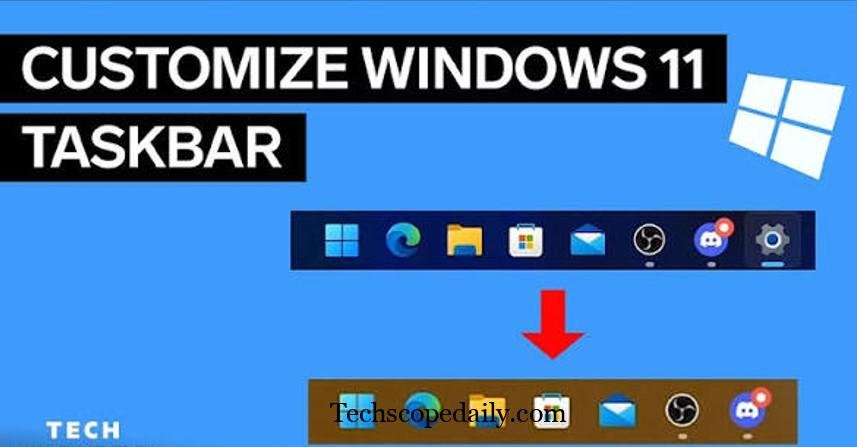
Out of the box, Windows 11 restricts several features that users relied on for years. You cannot resize it naturally, move it to the top or sides of your screen, or ungroup app icons.
Customizing your taskbar allows you to:
- Reclaim screen real estate: Auto-hiding or shrinking the taskbar gives you more room for active windows.
- Improve muscle memory: Moving the Start button to the left restores the classic Windows feel.
- Enhance aesthetics: Transparent or floating taskbars blend better with high-resolution desktop wallpapers.
- Boost productivity: Ungrouping icons lets you switch between multiple Word documents or browser tabs with a single click.
Let us explore how to execute these changes, starting with the safest method: Microsoft’s built-in settings.
Native Windows 11 Taskbar Settings
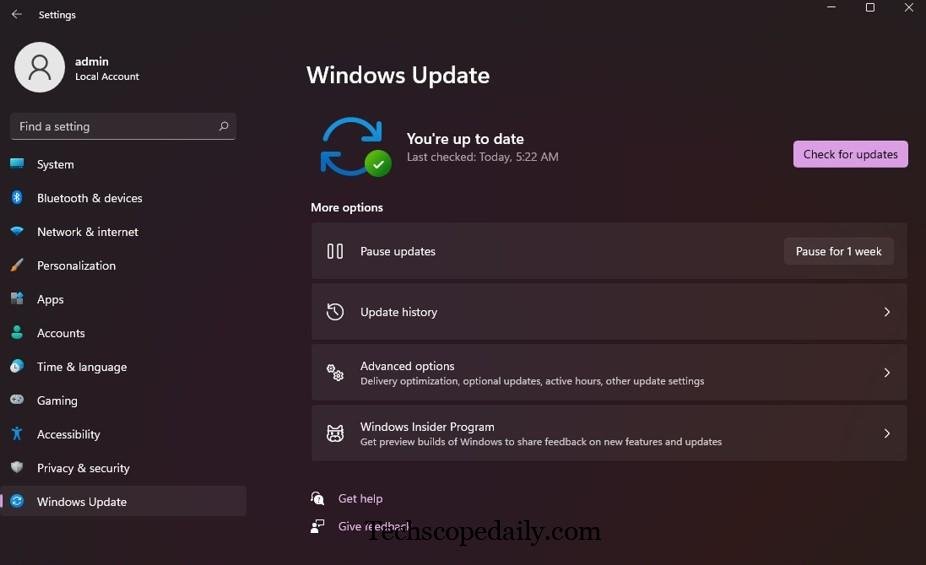
Microsoft provides a dedicated settings page to control basic taskbar behaviors. To access this menu, right-click an empty space on your taskbar and select Taskbar settings. Alternatively, press Win + I to open Settings, navigate to Personalization, and click Taskbar.
1. Moving the Start Button to the Left
The most common customization request is shifting the centered icons back to their traditional location.
- Scroll down to the Taskbar behaviors section.
- Click the drop-down menu next to Taskbar alignment.
- Change the setting from Center to Left.
Your Start button and pinned apps will immediately snap to the bottom-left corner of your screen.
2. Auto-Hiding the Taskbar
If you edit videos, play immersive games, or work on a smaller laptop screen, you might want the taskbar to disappear when not in use.
- Open Taskbar behaviors.
- Check the box next to Automatically hide the taskbar.
- The taskbar will slide down out of view. Just move your mouse cursor to the bottom edge of your screen to reveal it again.
3. Turning Off Default Taskbar Items
Windows 11 pins several native apps to your taskbar by default. If you do not use them, they only take up valuable space. Under the Taskbar items section, you can toggle off:
- Search: Choose between a search box, a search icon and label, a simple icon, or hide it entirely.
- Task View: Hide the virtual desktop manager if you rely on the Win + Tab shortcut instead.
- Widgets: Turn off the weather and news widget to prevent accidental pop-ups.
- Chat: Remove the Microsoft Teams integration if you use Zoom, Slack, or Google Meet for communication.
4. Customizing Multiple Displays
For professionals in India working with multi-monitor setups, taskbar real estate on secondary monitors is crucial.
Under Taskbar behaviors, check the box for Show my taskbar on all displays. You can then use the drop-down menu to decide where window buttons appear:
- All taskbars: Shows every open app on every monitor.
- Main taskbar and taskbar where window is open: Keeps your main screen cluttered but organizes secondary screens.
- Taskbar where window is open: The most organized option; apps only show on the screen they currently occupy.
Managing System Tray and Corner Icons
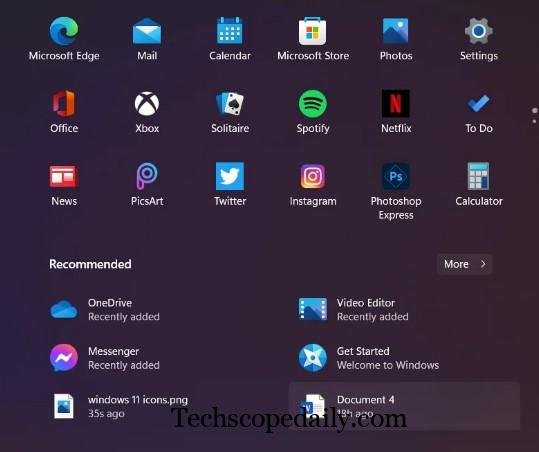
The bottom-right corner of your screen (the system tray) houses background apps, network settings, and volume controls. Over time, this area can become cluttered with software updates and chat apps.
Hiding and Unhiding Apps
To keep a clean aesthetic, Windows hides less critical apps behind a small upward-facing arrow.
- To pin an app: Click the arrow, click and drag the icon you want (like Slack or Spotify), and drop it onto the visible part of the system tray.
- To hide an app: Drag an icon from the visible tray and drop it into the hidden menu.
System Tray Icon Settings
In your Taskbar settings, navigate to Other system tray icons. Here, you will see a list of every background application running on your PC. You can manually toggle each app to On (always visible) or Off (hidden in the overflow menu).
Additionally, you can manage Taskbar corner icons, which include:
- Pen menu: Essential if you use a stylus or drawing tablet.
- Touch keyboard: Useful for 2-in-1 touchscreen laptops.
- Virtual touchpad: Creates an on-screen trackpad if your physical one breaks.
Advanced Registry Editor Tweaks
Disclaimer: Modifying the Windows Registry can cause system instability if done incorrectly. Always create a System Restore point or back up your registry before proceeding.
If native settings do not go far enough, power users can use the Registry Editor to force specific behaviors.
1. Changing Taskbar Size (Small, Medium, Large)
Unlike Windows 10, Windows 11 does not have a native toggle to make taskbar icons smaller. You must use the registry.
- Press Win + R, type regedit, and hit Enter.
- Navigate to the following path:
HKEY_CURRENT_USER\Software\Microsoft\Windows\CurrentVersion\Explorer\Advanced - Right-click the Advanced folder, select New, and click DWORD (32-bit) Value.
- Name the new value exactly TaskbarSi.
- Double-click TaskbarSi and change the Value data:
- 0 = Small taskbar
- 1 = Medium taskbar (Default)
- 2 = Large taskbar
- Click OK, close the Registry Editor, and restart your computer (or restart Windows Explorer via Task Manager).
2. Disabling the Bing Web Search in the Start Menu
When you use the taskbar search function, Windows often pulls web results from Bing, which can slow down local file searches.
- Open Registry Editor.
- Navigate to: HKEY_CURRENT_USER\Software\Policies\Microsoft\Windows
- Right-click the Windows folder, select New > Key, and name it Explorer.
- Right-click the new Explorer key, select New > DWORD (32-bit) Value, and name it DisableSearchBoxSuggestions.
- Double-click it and set the value to 1.
- Restart your PC. Your taskbar search will now only search your local files and installed apps.
Top Third-Party Taskbar Customization Tools
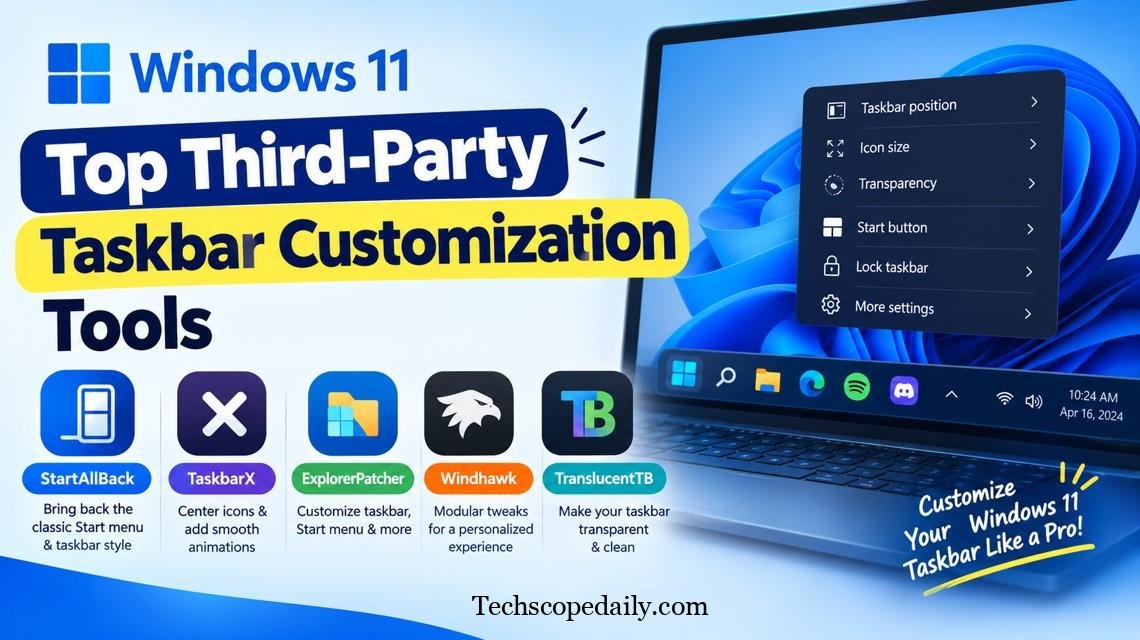
When native settings and registry hacks fall short, independent developers step in. Here are the best applications to achieve total Windows 11 taskbar customization.
1. ExplorerPatcher (Best Free All-in-One Tool)
ExplorerPatcher is an open-source tool designed specifically to restore Windows 10 functionality to Windows 11. It is incredibly lightweight and completely free.
Key Features:
- Restores the classic Windows 10 taskbar natively.
- Allows you to place the taskbar on the top, left, or right edges of your screen.
- Enables classic icon ungrouping (showing full app labels instead of just square icons).
- Brings back the classic right-click context menu.
How to use: Download the .exe file from the official GitHub page, install it, and your screen will blink. Once it reloads, your taskbar will look exactly like Windows 10. You can right-click the taskbar and select Properties to tweak things further.
2. StartAllBack (Best Premium Tool)
If you want a polished, bug-free experience and do not mind paying a small one-time fee, StartAllBack is widely considered the premium gold standard.
Key Features:
- Transforms the taskbar to look like Windows 7, Windows 10, or a refined version of Windows 11.
- Splits the taskbar into segments (separating the Start button, pinned apps, and system tray).
- Dynamic translucency and blurring effects.
- Enhances the File Explorer UI with classic ribbon menus.
3. TranslucentTB (Best for Aesthetics)
Available for free in the Microsoft Store, TranslucentTB does one thing flawlessly: it makes your taskbar transparent.
Key Features:
- Offers options for Blur, Clear (fully transparent), Acrylic, or Opaque taskbars.
- Dynamic state changes: The taskbar can turn fully transparent when on the desktop, but switch to blurred or opaque when a window is maximized so text remains readable.
- Incredibly low CPU and RAM usage.
4. RoundedTB
If you like the macOS aesthetic, RoundedTB (also available in the Microsoft Store) allows you to add curved edges and margins to your Windows taskbar. You can create a “floating” dock effect that shrinks the taskbar so it does not touch the edges of your monitor.
Comparison Table: Native vs. Third-Party Tools

To help you decide which route is best for your setup, compare the capabilities of different methods:
| Feature Requirement | Native Settings | ExplorerPatcher (Free) | StartAllBack (Paid) | TranslucentTB (Free) |
| Move Start Button Left | Yes | Yes | Yes | No |
| Change Taskbar Size | No (Requires Registry) | Yes | Yes | No |
| Move Taskbar to Top/Side | No | Yes | Yes | No |
| Ungroup App Icons | Yes (Recent update) | Yes | Yes | No |
| Full Transparency | No | No | Yes | Yes |
| Floating Dock Design | No | No | No | No (Use RoundedTB) |
Pros and Cons of Modifying Your Taskbar
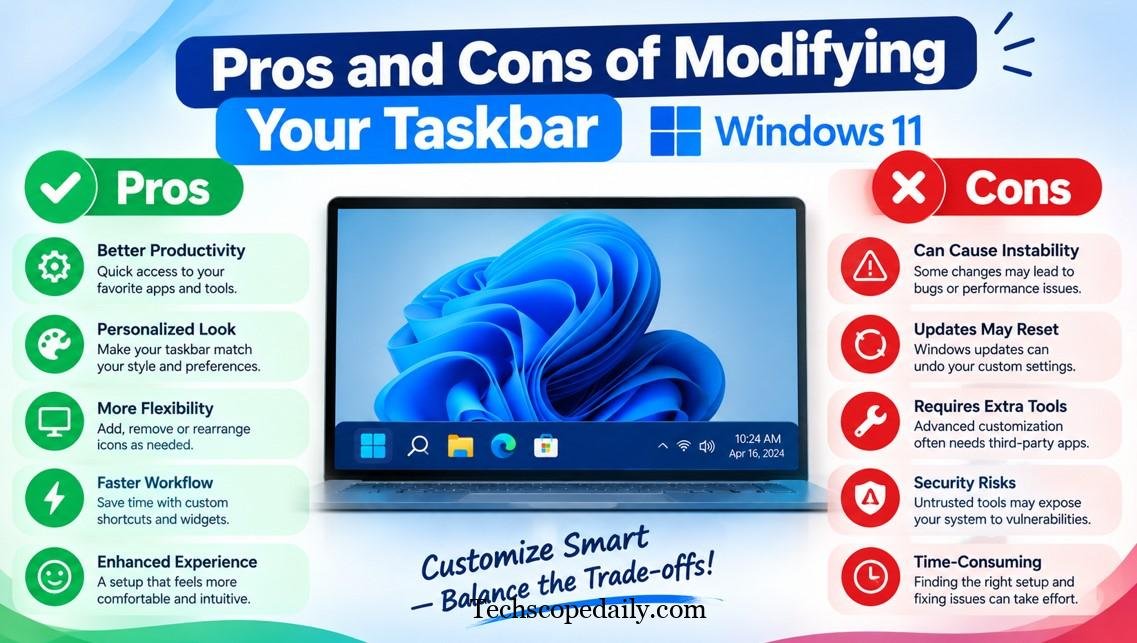
Before heavily modifying your system, weigh the benefits against the potential drawbacks.
Pros
- Personalized Workflow: Customizing aligns the operating system with how your brain naturally works, saving seconds on every click.
- Visual Appeal: Transparent and floating taskbars make high-end monitors look incredibly sleek and modern.
- Nostalgia and Comfort: Restoring Windows 10 features reduces the learning curve for users forced to upgrade.
Cons
- System Updates Can Break Tools: Major Windows 11 updates (like 23H2 or 24H2) frequently break third-party tools like ExplorerPatcher, requiring you to wait for a patch.
- Resource Usage: While minimal, running third-party customization software does consume a small amount of background RAM.
- Registry Risks: Incorrectly editing registry keys can corrupt system files, leading to a frustrating recovery process.
Troubleshooting Common Taskbar Issues
Sometimes, customization attempts go wrong. If your taskbar freezes, disappears, or acts erratically, follow these steps to restore order.
1. Restart Windows Explorer
The fastest fix for a frozen taskbar is restarting the underlying process.
- Press Ctrl + Shift + Esc to open the Task Manager.
- Make sure you are on the Processes tab.
- Scroll down to find Windows Explorer (it has a yellow folder icon).
- Right-click it and select Restart. The screen will flash, and your taskbar should return to normal.
2. Uninstall Problematic Windows Updates
Occasionally, an official Microsoft update conflicts with your customization tools.
- Open Settings > Windows Update > Update history.
- Scroll to the bottom and click Uninstall updates.
- Locate the most recent update, click Uninstall, and restart your PC.
3. Repair Corrupted System Files
If your registry tweaks caused permanent glitches, use the built-in system file checker.
- Press Win + S, type cmd, right-click Command Prompt, and select Run as administrator.
- Type sfc /scannow and press Enter.
- Allow the scan to reach 100%. Windows will automatically find and replace corrupted taskbar files.
Frequently Asked Questions (FAQs)
Can I move the Windows 11 taskbar to the top of the screen?
Natively, no. Microsoft removed this feature in Windows 11. However, you can easily achieve this using third-party applications like ExplorerPatcher or StartAllBack.
How do I make my taskbar completely transparent?
The safest and easiest method is downloading TranslucentTB from the Microsoft Store. It allows you to set the taskbar to “Clear,” giving you a 100% transparent look without editing the registry.
Is it safe to use tools like ExplorerPatcher?
Yes, ExplorerPatcher is open-source and widely trusted by the community. However, major Windows updates can temporarily break its functionality, requiring you to uninstall it or wait for a developer update.
How do I ungroup icons on the Windows 11 taskbar?
Microsoft recently brought this feature back natively. Go to Settings > Personalization > Taskbar > Taskbar behaviors, and look for the “Combine taskbar buttons and hide labels” setting. Change it to Never.
Why did my taskbar disappear completely?
You may have accidentally enabled “Automatically hide the taskbar” in the settings. Move your mouse to the bottom of the screen to reveal it. If it remains frozen, press Ctrl + Shift + Esc, find Windows Explorer, and click Restart.
How do I change the color of the taskbar?
Go to Settings > Personalization > Colors. Choose “Custom” or “Dark” mode, pick an accent color from the palette, and toggle on the switch that says Show accent color on Start and taskbar.
Can I add custom folders to the taskbar?
You cannot drag and drop folders directly. However, you can right-click any folder, select “Show more options” (if needed), and click Pin to Start. Alternatively, you can create a custom toolbar using third-party software.
Does customizing the taskbar drain laptop battery?
Native settings do not impact battery life. Third-party tools like TranslucentTB use very little CPU (less than 1%), so battery drain is negligible.
How do I resize the Windows 11 taskbar?
To resize it, you must use the Registry Editor to create a TaskbarSi DWORD value, or use a tool like StartAllBack. Native scaling only changes if you adjust your entire system’s display scale under System > Display.
Can I remove the date and time from the taskbar?
Yes. In Windows 11, you can hide the system clock by going to Settings > Time & language > Date & time, and toggling off the appropriate visibility settings, or by adjusting notification behaviors.
Conclusion
Mastering Windows 11 taskbar customization transforms a rigid, one-size-fits-all interface into a highly personalized command center. Whether you are a minimalist looking for a transparent, distraction-free desktop, or a productivity powerhouse needing classic Windows 10 icon ungrouping, the solutions are entirely within your reach.
Start by exploring the native Taskbar settings to manage alignments, system tray clutter, and multi-monitor behaviors. If you need more control, dive into the Registry Editor to adjust icon sizing, or leverage trusted third-party tools like ExplorerPatcher and TranslucentTB for deep structural and aesthetic changes.
Remember, the goal of customization is to make your PC work for you. Experiment with different alignments and transparencies until you find the perfect balance of form and function for your daily workflow.


