

Claude Desktop: Features, Setup, and Cowork Agent- 2026
Artificial intelligence is rapidly migrating from web browsers directly to our local operating systems. If you have been heavily relying on the web interface of Anthropic’s AI models, making the leap to Claude Desktop is a major workflow upgrade.
Unlike simple web wrappers that just load a browser window inside a standalone frame, the official desktop application introduces deep system integration. It allows the AI to interact with your local files, run background tasks, and even operate your terminal. With the recent rollouts of advanced models like Claude Sonnet 5 and Opus 4.8, alongside the powerful new Claude Cowork feature, the application is transforming how developers, researchers, and enterprise workers handle daily tasks.
Whether you are looking to automate mundane file organization, synthesize massive local documents, or deploy the app across a corporate network, this guide covers everything you need to know about Anthropic’s desktop client.
What is Claude Desktop?
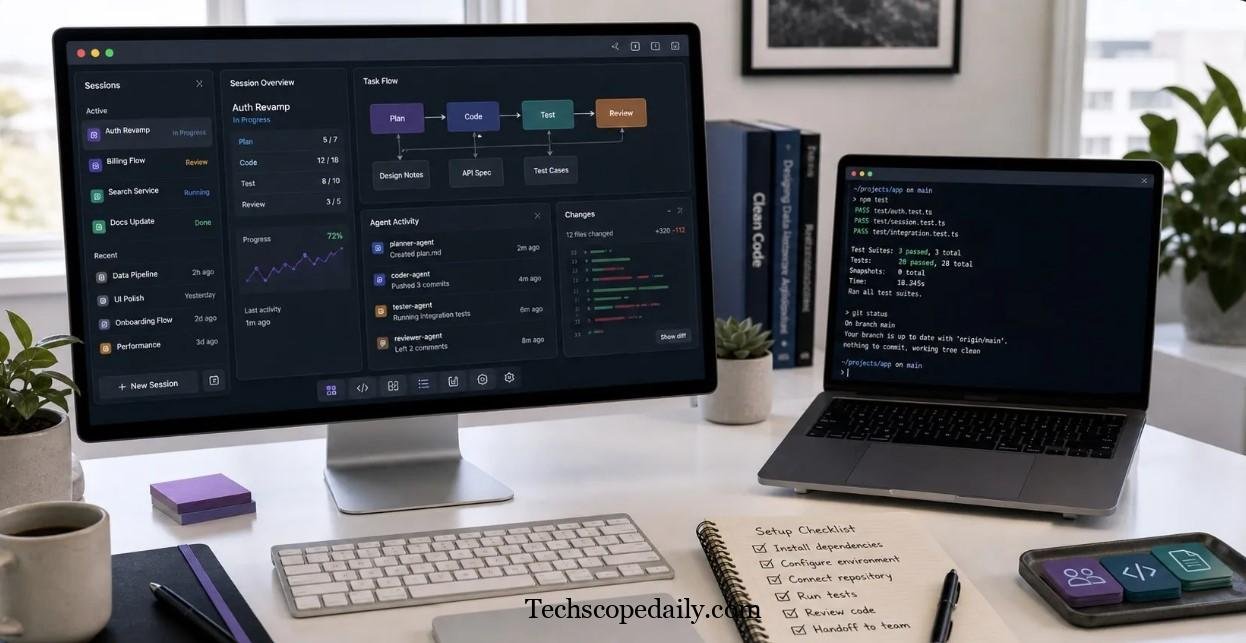
Claude Desktop is the official standalone application developed by Anthropic for macOS and Windows. Designed to eliminate the friction of constantly switching between browser tabs and local software, the desktop client brings Anthropic’s most capable Large Language Models (LLMs) directly into your native environment.
The application is built around three distinct functional pillars:
- Chat: This is the familiar conversational interface you already know from the web version. It allows you to ask questions, draft emails, and brainstorm ideas using standard prompts.
- Claude Cowork: A massive leap forward in agentic AI. Cowork operates as a background agent running inside a secure virtual machine (VM) on your computer. It handles complex, multi-step tasks independently without requiring you to micromanage every single prompt.
- Claude Code: Previously a separate command-line interface (CLI) tool, Claude Code is now natively bundled into the desktop app. It allows software engineers to run codebase reviews, execute terminal commands, and automate pull requests directly from the application UI.
By unifying these three modes into a single binary, Anthropic has created an ecosystem where non-technical users and seasoned developers alike can drastically reduce busywork.
Core Features of the Desktop App
The transition from browser-based chat to native desktop software unlocks capabilities that simply are not possible on the web. Here is a closer look at the features that make this software an essential productivity tool.
Local File and Folder Access
Instead of manually dragging and dropping individual PDFs or text documents into a web browser, the desktop app integrates natively with your file system. You can point the AI directly to a specific folder on your hard drive. Using the @filename command in the prompt box, you can instantly pull local documents into the context window. This makes analyzing massive local datasets or editing offline spreadsheets significantly faster.
Instant Model Switching
The application provides seamless access to the latest generation of Anthropic models. Depending on your subscription plan, you can dynamically switch between models based on the complexity of your task:
- Haiku 4.5: The default model for lightweight, lightning-fast interactions and quick data retrieval.
- Sonnet 5: The balanced workhorse, perfect for complex coding tasks, robust data analysis, and long-form writing.
- Opus 4.8: The heavy-duty model designed for maximum reasoning power, complex mathematical problem-solving, and advanced synthesis.
Screen Recording and UI Interaction
By granting the app accessibility and screen-recording permissions (specifically on macOS), the AI can actually see what is happening on your screen. You can take localized screenshots or highlight specific UI elements, telling the AI exactly what button or text field you are referring to. This visual grounding completely removes the need to write out long, descriptive prompts about complex software layouts.
Scheduled and Background Tasks
One of the most requested features is finally a reality. You can set up scheduled tasks to run at specific times. For example, you can program the app to run a daily code review every morning at 8:00 AM, or execute a weekly audit of local log files. The application runs these operations silently in the background, allowing you to focus on other high-priority work.
Read More: Upgrade Oxzep7 Python
Deep Dive into Claude Cutwork

While the chat interface is helpful, Claude Cowork is the true engine behind the desktop application’s power. Targeted directly at knowledge workers, Cowork bridges the gap between conversational AI and autonomous execution.
What Makes Cowork Different?
Most AI tools operate on a one-to-one input/output basis. You write a prompt, the AI gives an answer. If the task requires five steps, you have to write five separate prompts.
Cowork shifts this paradigm. You provide the ultimate goal, and the AI figures out the steps. Operating within its own secure environment, it can open your local files, synthesize data, restructure folders, and generate a final deliverable without asking for permission at every single juncture.
Security and Agentic Guardrails
Allowing an AI autonomous control over local files sounds risky, which is why Anthropic built Cowork with strict human oversight in mind. The system operates under different permission modes:
- Ask Permissions (Default): The AI maps out a plan but requires human approval before editing any local files or executing terminal commands.
- Auto-Accept Edits: Designed for trusted, repeatable workflows, this mode allows the agent to execute file changes automatically for rapid iteration.
- Plan Mode: The AI outlines its intended approach without touching anything, which is ideal for massive codebase refactors or sensitive data migrations.
System Requirements
Because the application runs complex local virtualization for the Cowork feature, the hardware demands are noticeably higher than traditional web browsing.
Minimum Requirements for Chat-Only Use
If you are on the Free plan or only intend to use the basic Chat interface, the requirements are very forgiving:
- macOS: macOS 13.0 (Ventura) or newer.
- Windows: Windows 10 (Build 19041 / Version 2004) or Windows 11.
- RAM: 8GB minimum.
- Disk Space: 1GB of free storage.
Requirements for Claude Cowork
Cowork utilizes hardware virtualization (QEMU/KVM) to run a secure background workspace. Therefore, the requirements jump significantly:
- Processor: Modern multi-core CPU. Apple Silicon (M1 or newer) provides the absolute best experience on Mac. Windows requires a 64-bit architecture (x64 or Arm64).
- Virtualization: Hardware virtualization must be enabled in your BIOS/UEFI settings (VT-x for Intel, AMD-V for AMD). On Windows, the Hyper-V stack must be active.
- RAM: 16GB minimum to run comfortably alongside browsers and IDEs (32GB is highly recommended for developers running large monorepos).
- Disk Space: 5GB minimum (up to 25GB recommended) for the VM workspace image and project work-trees.
- Account: You must have an active Pro, Max, Team, or Enterprise subscription. Free accounts cannot activate Cowork.
How to Download and Install
Installing the application is straightforward for standard users, though enterprise deployments require a few extra steps.
Installing on macOS
- Navigate to the official Claude downloads page on Anthropic’s website.
- Download the Universal macOS build (.dmg file), which natively supports both Intel and Apple Silicon processors.
- Open the downloaded file and drag the application icon into your Applications folder.
- Launch the app and sign in.
- Note for Cowork users: You will be prompted to grant Accessibility and Screen Recording permissions in your macOS System Settings to enable advanced UI interactions.
Installing on Windows
- Visit the official downloads page and grab the Windows installer.
- Windows utilizes an .msix package to support seamless updates and enterprise provisioning.
- Run the installer. You will encounter a standard User Account Control (UAC) prompt. Administrator privileges are required to install the Virtual Machine Platform necessary for Cowork.
- After installation, launch the software from your Start menu and log in.
What About Linux?
Currently, there is no official, full-featured desktop graphical user interface (GUI) for Linux. However, developers on Ubuntu or Debian can install Claude Code natively using apt or .deb packages to access the terminal-based agent capabilities. Linux users who want the GUI experience must rely on unofficial open-source community ports or stick to the web interface.
Claude Desktop vs. Web Interface
Should you bother installing the software if the website works perfectly fine? Below is a side-by-side comparison to help you decide.
| Feature | Claude Desktop App | Claude Web Interface (Browser) |
| Local File Access | Yes (Direct filesystem integration) | No (Requires manual manual uploads) |
| Claude Cowork Agent | Yes (Runs locally in VM) | Yes (Runs remotely via Cloud) |
| Screen Recording/UI Vision | Yes | No |
| Terminal / CLI Access | Yes (via bundled Claude Code) | No |
| Scheduled Background Tasks | Yes (Executes while app is closed) | No |
| System Resource Usage | High (Requires 16GB RAM for Cowork) | Low (Handled entirely by browser) |
| Offline Mode | Limited (Requires connection for API calls) | No (Completely browser dependent) |
The Verdict: If you use AI for basic writing and queries, the web version is sufficient. However, if you are a developer, data analyst, or power user who needs to process local files, generate code, or automate repetitive multi-step tasks, the desktop application is an absolute necessity.
Enterprise Deployment and Administration

For IT administrators managing large fleets of devices, Anthropic has heavily optimized the desktop client for enterprise deployment. Organizations on Team or Enterprise plans can manage installations centrally.
Automated Provisioning
The Windows .msix package natively supports silent deployments through Microsoft Intune, SCCM, or Group Policy. IT teams can provision the software machine-wide, ensuring that every employee has access to the tool without requiring local admin rights for basic usage (though Cowork still requires VM platform installation).
Security and Telemetry Controls
Anthropic understands corporate data privacy. Using the internal API Gateway, administrators can enforce strict organizational policies:
- Access Management: Tie application access to Okta, Microsoft Entra ID, or Google Workspace via OpenID Connect (OIDC).
- Model Restrictions: Control exactly which models (e.g., forcing Haiku 4.5 for cost savings) employees are allowed to use.
- Audit Logging: Telemetry and usage metrics can be routed directly to your company’s internal OTLP collectors, ensuring you retain total ownership of audit logs.
- Air-Gapped Updates: IT can disable automatic updates and redistribute approved .msix or .dmg packages on their own internal cadence.
Read More: Software GDTJ45 Builder Problems
Pros & Cons
Before migrating your workflow, it is important to weigh the strengths and weaknesses of the software.
Pros:
- Eliminates the friction of manual file uploads with deep native system integration.
- Cowork handles complex, multi-step tasks autonomously.
- Built-in terminal and code review tools are a massive boost for software engineers.
- Scheduled tasks allow automation to run entirely in the background.
- Robust enterprise controls for IT departments.
Cons:
- Extremely high system requirements (16GB+ RAM) to run the Cowork VM smoothly.
- No official graphical desktop application for Linux users.
- Hardware virtualization requirements can cause installation headaches on older Windows machines.
- The most powerful features are locked behind paid Pro, Max, or Enterprise subscriptions.
Powerful Use Cases for Daily Work

Understanding the technical specs is one thing, but how does this software actually impact daily productivity? Here are five real-world ways to leverage the application.
1. Organizing Messy Local Directories
File systems become cluttered over time. Instead of manually sorting your Downloads folder, you can point Cowork at the directory. Instruct the AI to deduplicate files, rename documents based on their contents, and sort them into appropriate subfolders. The AI handles the entire process autonomously.
2. Painless Code Refactoring
Developers can open their project directory inside the app. You can instruct the agent to “Find all instances of deprecated API calls in this repository and update them to the new syntax.” The AI will scan the local files, map out the changes, and present a Git diff view for you to approve before it commits the code.
3. Rapid Research Synthesis
If you have a folder containing 40 different PDF market reports, reading them manually takes days. You can ask the desktop app to read the entire folder, extract specific statistics regarding market growth, and generate a formatted markdown summary.
4. Automated Log Auditing
System administrators can use the scheduled task feature to parse local error logs. You can set the app to scan system logs every Friday at 4:00 PM, identify critical security warnings, and draft an email summary of potential vulnerabilities.
5. Extracting Data from Unstructured Forms
Lawyers, accountants, and HR professionals often deal with messy, unstructured PDFs. You can feed a directory of scanned invoices into the application and ask it to extract the dates, vendor names, and totals, outputting the results into a clean, working CSV file.
Frequently Asked Questions (FAQs)
1. Is the Claude Desktop app free to use?
Yes, you can download and use the basic Chat interface on the Free plan. However, advanced features like Claude Cowork, background tasks, and higher message limits require a Pro, Max, Team, or Enterprise subscription.
2. Do I need an internet connection to use the desktop app?
Yes. While the application runs locally and interacts with your local file system, the actual processing and LLM inference still happen on Anthropic’s cloud servers. You must have an active internet connection to send and receive prompts.
3. Why does Cowork require hardware virtualization?
To ensure maximum security and prevent the AI from accidentally damaging your core operating system, Cowork runs its agentic tasks inside an isolated virtual machine (VM). Hardware virtualization allows this VM to run efficiently on your processor.
4. How do I enable hardware virtualization on Windows?
You will need to restart your computer and enter your BIOS/UEFI settings. Look for settings labeled “Intel Virtualization Technology (VT-x)” or “SVM Mode (AMD-V)” and toggle them to “Enabled.”
5. Does the app support third-party plugins?
Yes. The desktop client supports various custom skills, plugins, and MCP (Model Context Protocol) servers. You can integrate tools like GitHub, Slack, and Google Drive to expand the AI’s capabilities.
6. Can Claude see my screen without my permission?
Absolutely not. On macOS, you must manually go into your System Settings and explicitly grant Screen Recording and Accessibility permissions before the AI can view or interact with your screen. You can revoke these permissions at any time.
7. Is my local data used to train Anthropic’s AI models?
Anthropic maintains a strict privacy policy. Data processed through Team, Enterprise, and API accounts is never used to train their foundational models. Consumer Pro and Free users can opt out of data training in their privacy settings.
8. What should I do if the Windows app won’t open?
If you experience a blank screen or a “Failed to load session” error upon launch, ensure that your system meets the virtualization requirements. Additionally, running the app as an administrator or reinstalling the .msix package often resolves temporary credential corruption.
9. Will there be an official Linux GUI?
As of late 2026, Anthropic only officially supports the terminal-based Claude Code on Linux (via apt and .deb). While community-driven GUI ports exist, Anthropic has not released a timeline for an official Linux desktop window interface.
10. How do I update the application?
By default, the application runs an auto-updater in the background. When a new version is available, it will download and prompt you to restart. Enterprise users deployed via MDM will receive updates according to their IT department’s deployment schedule.
Conclusion
The release of the Claude Desktop application marks a fundamental shift in how we interact with artificial intelligence. By breaking out of the web browser and integrating directly with local file systems, command-line interfaces, and virtualized workspaces, Anthropic has delivered a powerhouse tool for serious knowledge workers.
While the system requirements for features like Claude Cowork are demanding, the productivity gains for developers, researchers, and enterprise teams are undeniable. Whether you are automating tedious folder organization, conducting massive code refactors, or deploying AI securely across a corporate network, this application is built to handle heavy lifting. Download the software, explore the agentic capabilities, and let the AI take over the busywork.